A dock on every screen
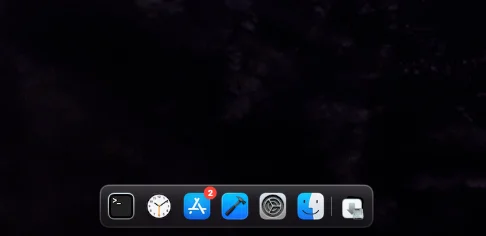
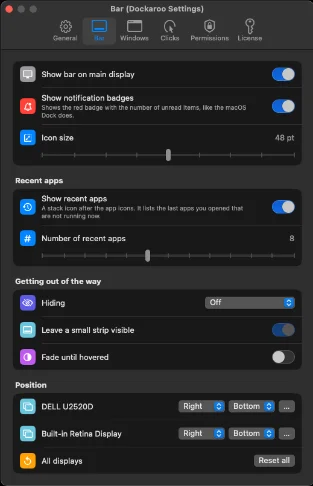
Each external display gets its own floating bar of app icons. The main display gets one too, and you can turn it off. Many people then set the macOS Dock to auto-hide.
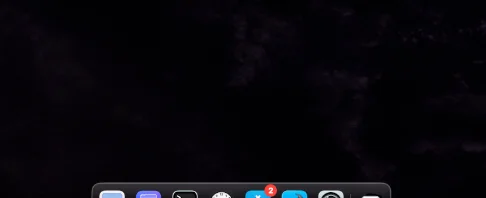
Dockaroo gives each display and each desktop its own dock. Each one shows only the apps that have windows there.
14-day free trial · macOS 14 or later · Apple silicon & Intel
macOS puts the Dock on one screen only. On your other displays, you end up pressing ⌃↑ for Mission Control or holding ⌘⇥ and hunting for a window you know is there.
Each external display gets its own floating bar of app icons. The main display gets one too, and you can turn it off. Many people then set the macOS Dock to auto-hide.
Each desktop (Space) gets its own bar, showing only that desktop’s apps.
A screen’s bar shows only the apps with windows on that screen and desktop. Apps from elsewhere stay out of the way.
Click an icon to bring the app’s most recent window forward. Click again to put back whatever was in front before. Or set it to bring all windows, minimize, or do nothing.
Hover an icon to see pictures of that app’s windows on this screen, with titles. Click one to bring exactly that window forward. If two windows share a title, you’ll see the size of each. Previews need the optional Screen Recording permission.
The same red badges as the real Dock, including unread counts.
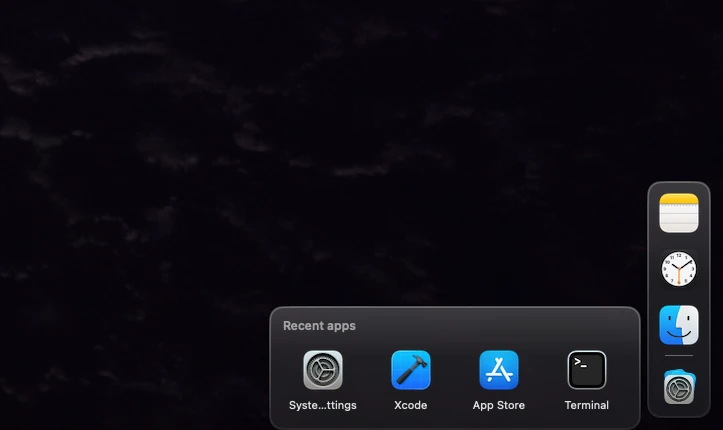
A stack at the end of the bar keeps your recently launched apps that aren’t running any more. Click to launch one again.
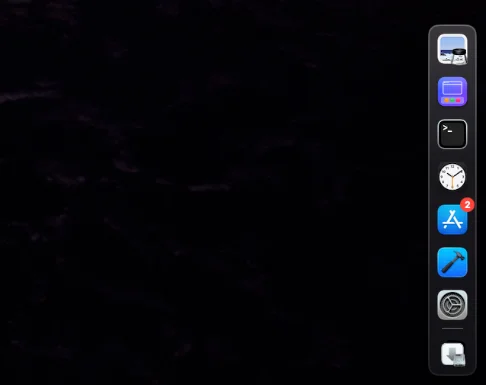
12 snap positions: the top, bottom, left or right edge, each at the start, middle or end. Bars on the side edges stand upright. Drag the bar and it snaps into place.
Auto-hide and leave a thin strip, hide when a window covers the bar, or fade it until you hover. You can also change the icon size.
Keep minimized windows in the bar so they are one click away. This is optional.
Choose the frosted glass look or a plain solid bar.
About 20 MB of memory and around half a percent of one processor core when idle, measured on an Apple silicon Mac.
Open the app and your 14-day trial starts, with everything unlocked. You don’t need a key.
Accessibility is required. It lets Dockaroo bring the right window forward and read Dock badges. Screen Recording is optional and only used for window preview pictures. After you allow it, macOS asks you to reopen Dockaroo.
Every screen now has its own dock.
Dockaroo connects to the internet only to start your trial, check your license and check for updates. Nothing about your windows, your screen or what you type is ever sent.
$19 one-time
Lifetime license for one Mac at a time.
Accessibility is required. It lets Dockaroo bring the right window forward and read notification badges.
Screen Recording is optional and only used for window preview pictures. macOS describes this permission in alarming terms (“bypass the private window picker and directly access your screen and audio”). That is Apple’s standard wording. Dockaroo only takes still pictures of windows, never audio, and keeps them in memory only. After you allow it, macOS asks you to reopen Dockaroo.